This appendix contains the following topic:
Printing W-2s using either pre-printed forms or plain paper forms.
Using the current set of year-end changes for reporting 2023, to print W-2s you have the option of printing these on preprinted forms or on plain paper. (The red Type “A” form must be submitted on a commercially available pre-printed form or can be submitted electronically to the SSA’s Business Services Online.)
Pre-printed forms
Pre-printed forms should use a company information printer and it must be a laser printer. (Company information printers are printers that are defined specifically in the 4th tab of the company information screen. And laser printers are any of the laser printers in the printer Type selection list requested during the setup there e.g. PBS printer Type “HP Laser Jet IV”). For pre-printed forms, if the print output is directed to a Windows printer, the font size used for some fields may be different from the PBS default, so that the printed data does not align with the pre-printed boxes.
Plain paper forms
For any of the plain paper printing options, whether you are printing a single form type (e.g., the “B” copy) or multiples ( “B” plus “C”, etc.), the plain paper W-2s are always printed as two pages - the odd- numbered page is the form itself and the even-numbered page is the verbiage that would be printed on the back of the stock preprinted form.
PDF plain paper forms must go to a Windows printer and the option for printing single pages or double-sided (duplex) is determined by a setup in the printer itself. This means that if the printer is setup in a single page mode (normally the printer default), the W-2s will be printed as 2 pages per form. This clearly will double the number of sheets used but it is acceptable for submissions. Since PBS currently does not have the ability to reset the printer into duplex mode itself, duplex printing must be setup by modifying the Printer Preferences for the print you want to use. (This must be done before you start the printing. And with resetting the printer back to single page mode afterward).
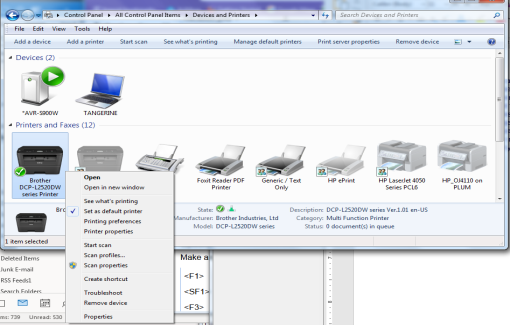
Each printer driver will be somewhat different but if the printer does support duplex, printing find the Printer Preferences setup page in your control panel/setup under “Devices and Printers”:
Right-click and select Printer Preferences. The following screen will be different for each printer but should have similar options:
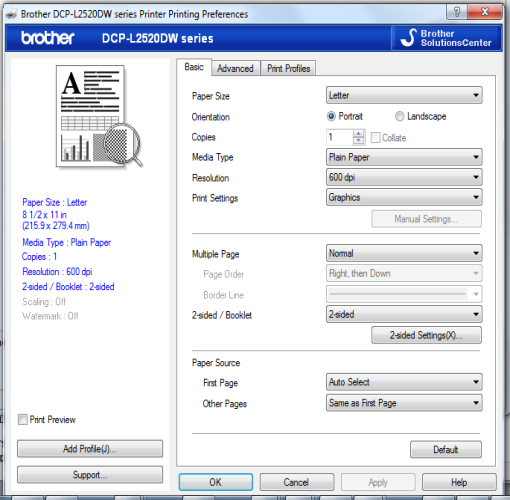
Select two-side / duplex option and OK through the options to return to your desktop and PBS.
As an additional advanced option. you could also consider defining a second copy of this same printer. This printer will have a different name e.g., Brother-SingleSided versus Brother-Duplex and will support different preferences. Doing this is beyond the scope of this brief document but an internet search may provide additional information. For example, searching “having one printer support two sets of preferences” should give you results similar to these examples: "Define the same printer twice with different default settings ...", or "Solved: One printer, two computers, two different settings", etc.
Of course, there is a bit of setup to do this, but it means that the two types of printing are easily (and publicly) available simply by selecting a printer in the Windows printer list. So, if this is going to be a frequent event it may be worth considering. Consider also that things like manual feed options are also set up here.